
Set Up Your Workflow
What a step is
Section titled “What a step is”A step is a digital version of one phase in your dealership’s process. If you track recon on a whiteboard or a spreadsheet today, each column or stage is a step. Photos. Detail. Inspection. Whatever you actually do.
EasyRecon doesn’t force a process — it makes your existing one visible. Every dealership runs differently. Your steps are yours.
Start simple
Section titled “Start simple”Match your existing process. If you’re using a spreadsheet or whiteboard today, copy that exactly — so you can measure it, then manage it. Don’t try to fix it on day one. Don’t add steps for things you don’t track today.
Build a simple skeleton — you can always rename, reorder, or add steps later. Nothing is permanent. A dealership with six real steps doesn’t need twelve in software.
The default workflow EasyRecon gives you
Section titled “The default workflow EasyRecon gives you”When you first set up EasyRecon, you get an 11-step template called Retail Recon (Universal). It covers the full recon cycle from intake to frontline.
This is a starting point — change anything. The times below are defaults. Adjust them to match what your team actually hits.
| Step | What happens | Time goal (default) |
|---|---|---|
| Incoming | Car arrives. Logged in the system. | — |
| In Transit | Car is on its way from auction or trade. | — |
| Ready For Service | Car is on your lot and ready to start recon. | 30 min |
| Inspection | Multi-point inspection. Find what needs work. | 2 hours |
| Estimate Approval | Manager reviews and approves the repair estimate. | 1 hour |
| Repair | Mechanical and body work happens here. | 8 hours |
| Offsite | Car is at an outside vendor — body shop, glass, etc. | 3 days |
| Detail | Interior and exterior detail. | 4 hours |
| Photos | Lot photos taken. Car ready to list. | 1 hour |
| Frontline | Car is on the lot. Retail-ready. Recon is done. | — |
| Wholesale | Car is disposed of without retail prep. Recon is done. | — |
The four steps with no time goal (Incoming, In Transit, Frontline, Wholesale) are bookends. They don’t count toward your Active Days score. More on that below.
Add, rename, and reorder steps
Section titled “Add, rename, and reorder steps”You can change any step at any time. Open Admin → Steps to get started (Admin is in the bottom nav on mobile, left sidebar on desktop).
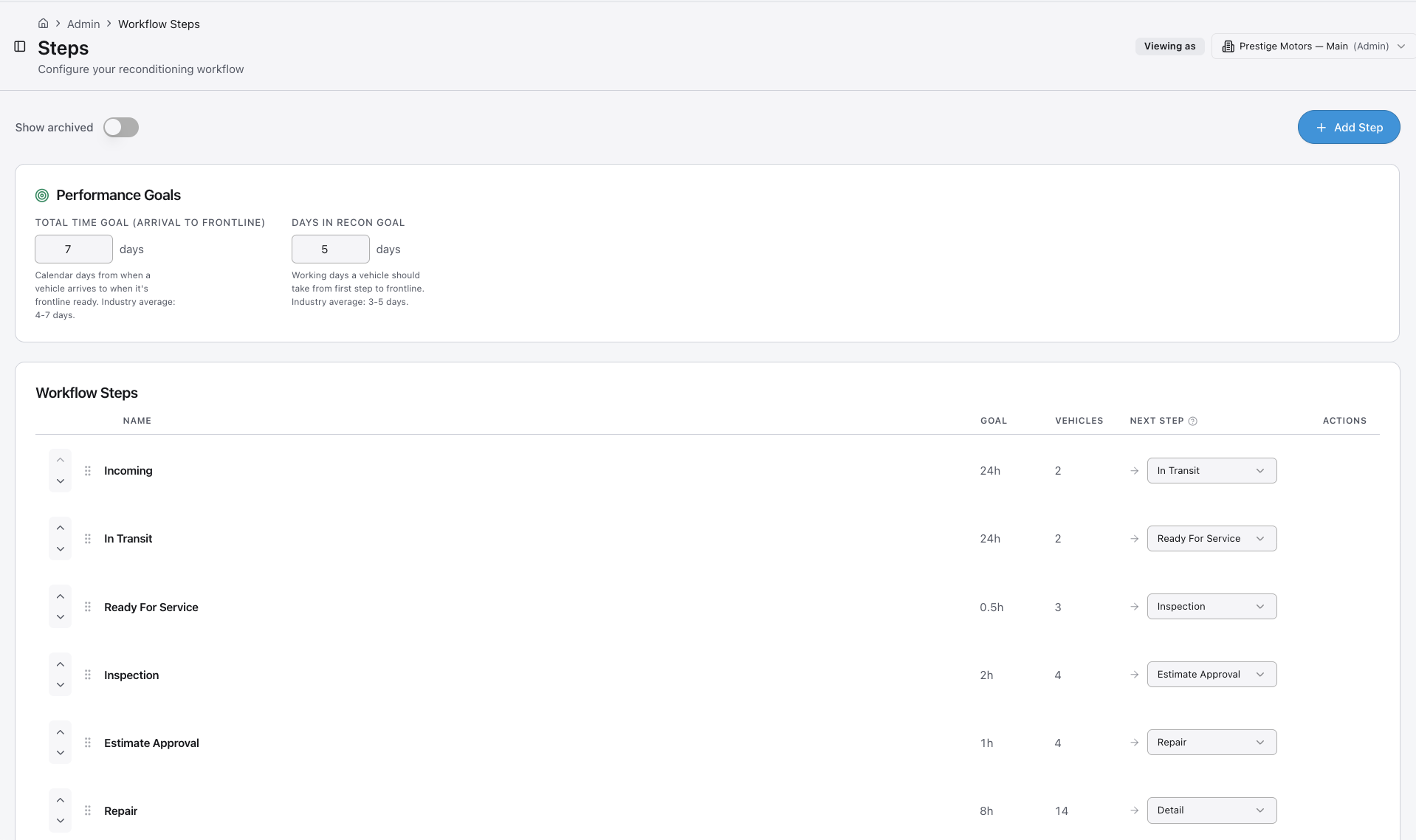
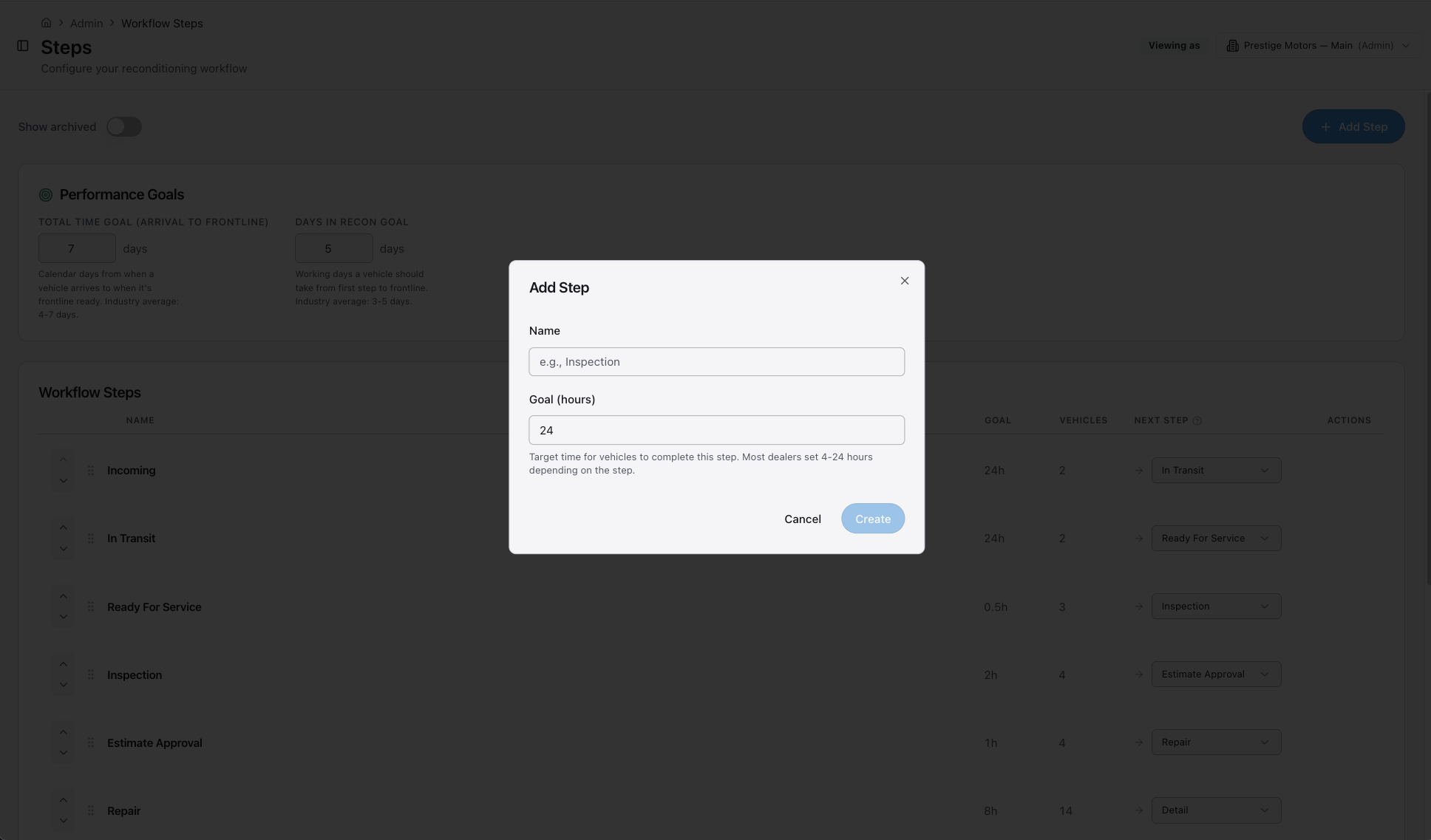
- Open Admin from the main menu.
- Tap Steps.
- To add a step, tap Add Step, type a name, and set a time goal if you want one.
- To rename a step, tap the step name and type the new name.
- To reorder, drag the step to the position you want.
- Tap Save when you’re done.
Changes take effect right away. Cars already in a step stay there — you don’t need to move them after a rename.
If you remove a step that has cars in it, EasyRecon will ask you where to move those cars first. Nothing disappears without your say.
Time goals — what counts
Section titled “Time goals — what counts”Every step can have a time goal. The goal is the target time you want a car to spend in that step before moving on.
Time counts from the moment a car is moved in to the moment it’s moved out. The clock starts when the car arrives. It stops when the car leaves.
When a car goes over its goal, the dashboard flags it. You’ll see a color change on the card. That’s your signal to check in.
You set goals per step. A goal is optional. If you leave it at zero, the dashboard won’t flag that step for time.
Active Days vs Total Time
Section titled “Active Days vs Total Time”Quick example: A car sits on Frontline for ten days waiting for the right buyer. Total Time ticks every one of those days. Active Days does not — recon was done when the car hit Frontline. That’s the whole distinction.
Active Days is the controllable time — from when the car arrived to when it’s ready to sell. This is what your fixed ops team owns. You can choose which steps count toward Active Days in your workflow settings (since some steps — like Frontline or Wholesale — shouldn’t count).
Total time is the full clock from arrival to current step. Use Total to see the whole picture. Use Active Days to manage your team.
Active Days is the metric you’ll see most often on the dashboard. It’s the number a GM holds the team to.
Get notified when a car enters a step
Section titled “Get notified when a car enters a step”Anyone subscribed to a step gets a notification when a car enters it. Set this up in your notification settings, or click the bell in the top bar.
See Notes & Notifications for the full picture.
Labels — tags for cars
Section titled “Labels — tags for cars”Labels are sticky notes for cars. Two main kinds you’ll use most often:
- Normal labels — Sticky note. “Needs windshield.” “Customer car.” “Loaner.” Anything you want everyone to see without digging through notes. Filter the dashboard by any label.
- Vendor labels — Sticky note plus a job. When you apply a vendor label like “PDR,” the vendor gets a text. They reply “done” or mark it done in the app. Lets you see which cars are pending vendor work without parking them in a step.
(There are also Tech and RO labels for assigning a technician or tracking the repair order number. See Labels, Vendors & Media for the full set.)
Terminal steps
Section titled “Terminal steps”A terminal step is where a car ends up when recon is done. Frontline (ready to sell) and Wholesale (sold off lot) are the defaults.
You can add more — Loaner cars, WIO (Work In Others), or any other “done” flow. Cars in terminal steps don’t count against your Active Days clock.