
Views & Reports
Your dashboard has three views you can switch between:
- Workstation — Main view for working. Fewer cars at once, more options per car.
- List — Spreadsheet view. Lots of cars at once, scroll fast.
- Calendar — Shows all your shot clocks (deadlines) on a calendar.
Workstation and List show the same cars (filtered by what you’ve selected). Toggle between them based on what you’re trying to do.
Workstation view
Section titled “Workstation view”The main view. Most users do most of their work here.
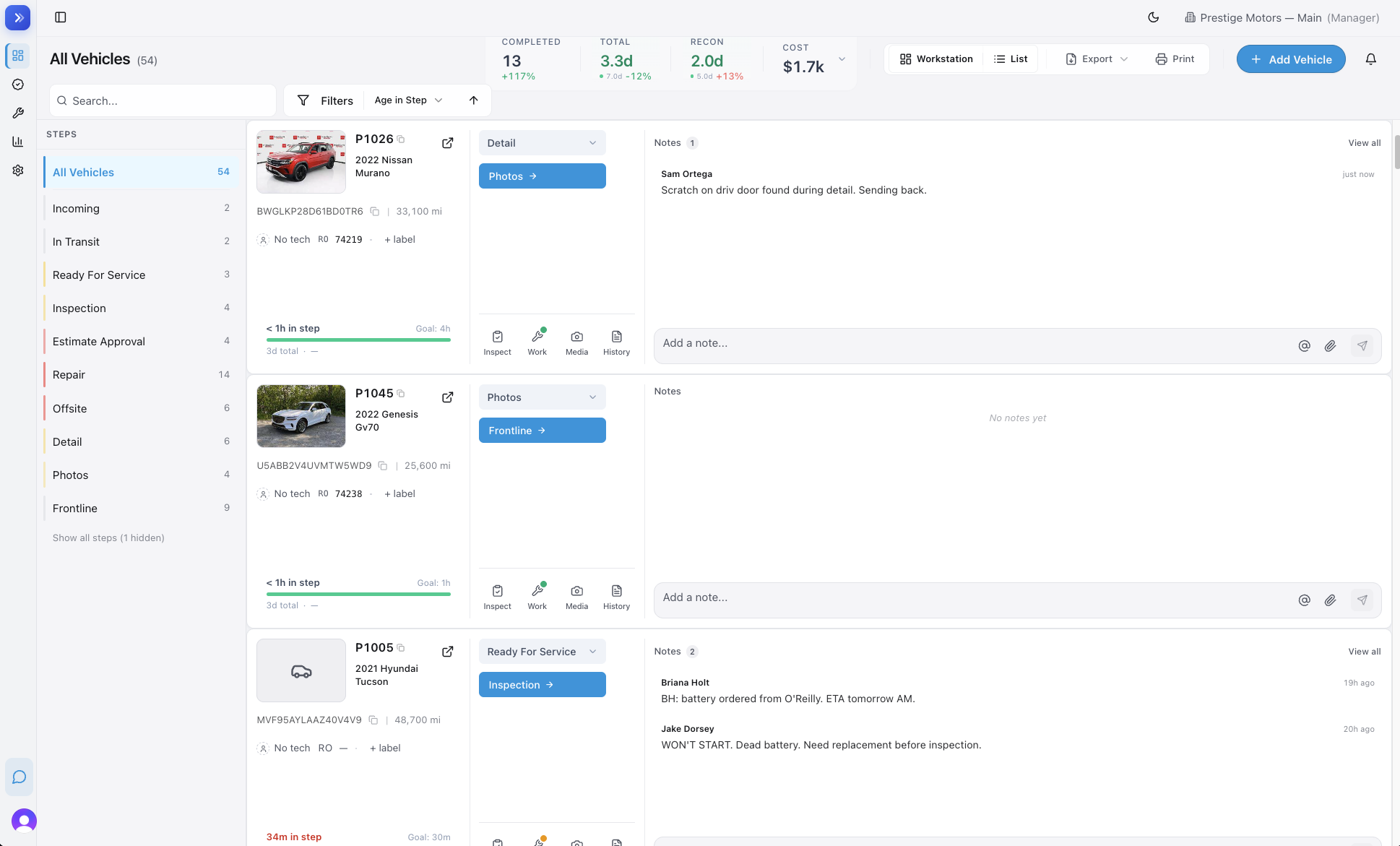
You can add labels, move cars, see the full activity feed per car, and get to all per-car actions. Best when you’re doing focused work on a small set of cars.
List view
Section titled “List view”Spreadsheet-style. See a lot of cars at once. Sort, filter, scroll.
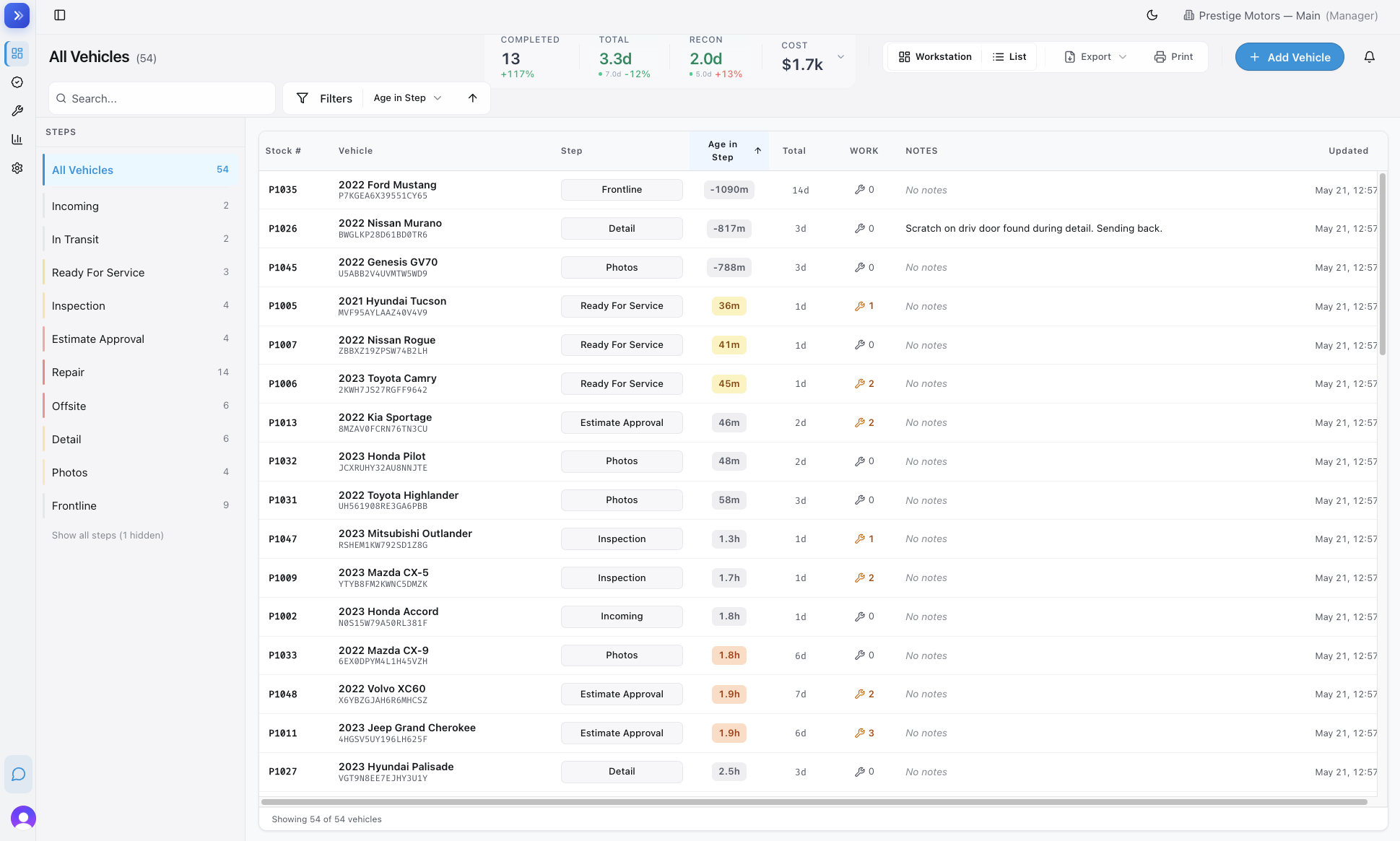
Same per-car actions as Workstation — just a different layout. Best for an overview pass: how many cars in each step, who’s behind, what’s overdue.
Calendar view
Section titled “Calendar view”Shows all your Shot Clocks on a calendar — arbitration windows, parts arrival dates, customer pickups.
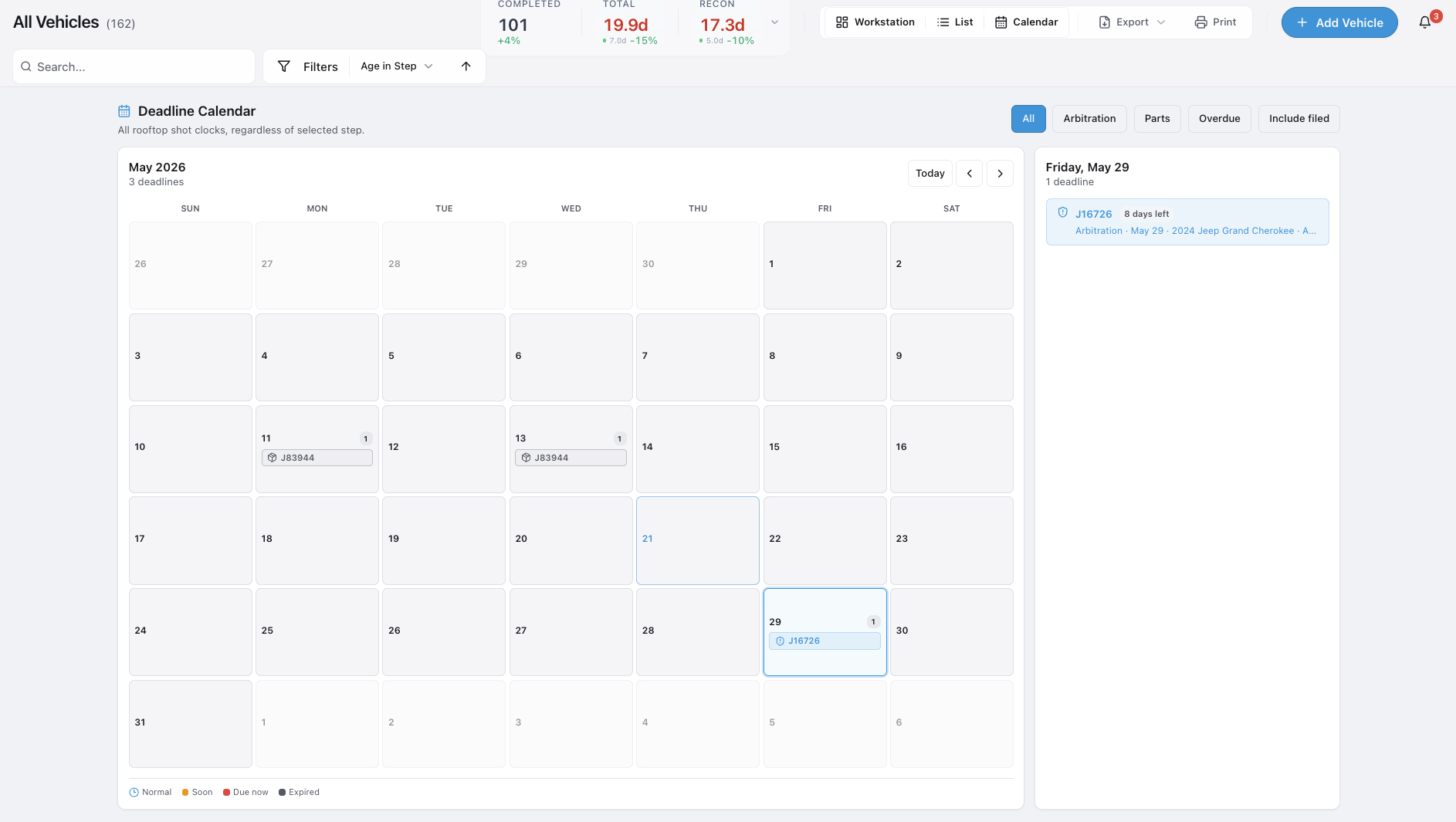
Use this when you have time-sensitive cars and need to see what’s due when.
Filters and sorts
Section titled “Filters and sorts”All three views share the same filter toolbar. You set your filters once, and they stay on as you switch between views.
Filter by:
- Step — tap a step in the rail, or use the filter bar
- Tech — show only cars assigned to a specific person
- Vendor — show only cars with a specific vendor label
- Label — filter by any label on the car
- Days in recon — set a range (for example, 5 to 10 days in)
- Deadline date — show cars due before a certain date
Sort by (List view):
- Date added
- Days in current step
- Days in recon
- Retail price
Filters save per user. Your filters persist the next time you open the dashboard. To clear everything, tap Reset Filters.
The step rail on the left mirrors your workflow setup. If your workflow has different steps than another rooftop (another dealership location), your rail reflects that.
Command Center — what to fix right now
Section titled “Command Center — what to fix right now”The Command Center is your “what do I do right now?” page. It shows:
- How far behind your goals you are
- How much that’s costing the store right now
- Your real bottlenecks in real time
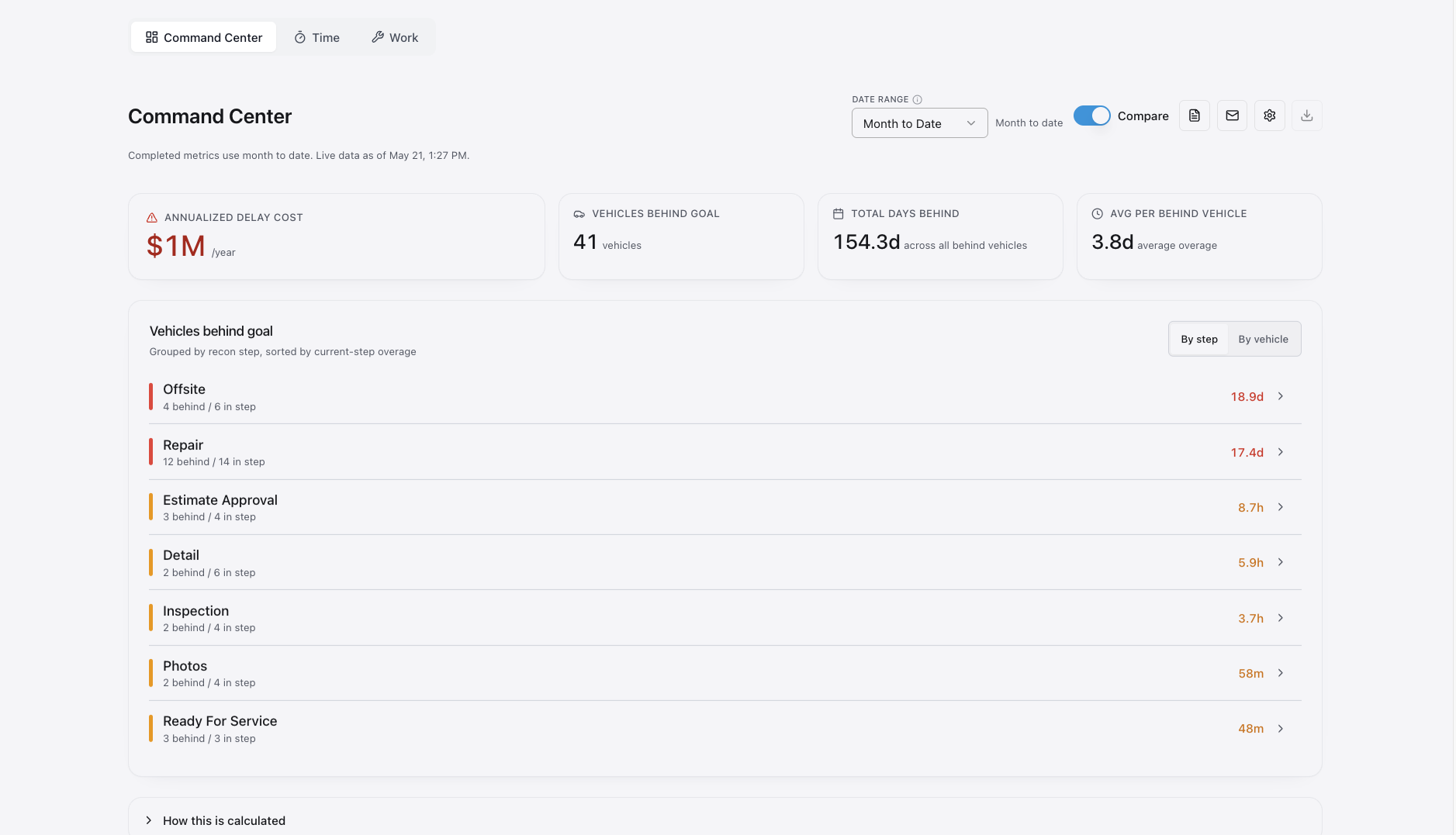
Use this every morning. Fix what it tells you to fix.
The headline number is Active Days — the time your team controlled. See Active Days vs Total Time for how it’s calculated.
Time Report — historical performance
Section titled “Time Report — historical performance”Where Command Center is “right now,” Time Report is “the last week / month.”
How long is each step taking? Where are your chronic bottlenecks? How does this week compare to last month? Use Time Report to set goals and track trends.
Work Report — work item analytics
Section titled “Work Report — work item analytics”Work Report rolls up all your work items: average spend per car, frequency by type, parts vs labor breakdown, vendor spend.
You need to be logging work items in EasyRecon for Work Report to be useful. If you’re not, start logging — the reporting alone pays for it.
AI Reports — ask any question
Section titled “AI Reports — ask any question”AI Reports lets you ask any question about your dealership and get a custom report. Follow up with more questions. Examples:
- What’s my biggest bottleneck right now and how do I fix it?
- Who on my team is doing a great job? Who hasn’t logged in this week?
- What process change would get my Time to Frontline down to 3 days?
- What’s a pattern I’m missing in the data?
Ask in plain English. The report appears as cards, tables, or charts.
Daily Briefing
Section titled “Daily Briefing”A one-page summary you can print and bring to a stand-up. Active cars, overdue cars, what shipped yesterday.
Find it at /print/briefing.
Your AI Co-worker — in-app and over text
Section titled “Your AI Co-worker — in-app and over text”EasyRecon’s AI co-worker can do anything you can do — but faster, by chat or text.
Ask it:
- A question: “How many cars are in Detail right now?”
- An action: “Move stock #4812 to Photos.”
- A work item: “Add an oil change to the 2021 Camry.”
- A note: “Note on stock #5301: customer wants pickup Friday.”
- A lookup: “What cars are overdue in Repair?”
Two ways to use it:
- In-app — Click the AI assistant button (top right). Type or talk.
- Over SMS — Text your dealership’s EasyRecon number. Same powers, in your texts.
Skip the clicking. Tell the assistant what you want and it does it for you. Think of it as a helpful co-worker that can use the app on your behalf.
Visual Inspection AI
Section titled “Visual Inspection AI”Upload your walk-around photos for a car. AI looks across every photo, flags possible damage, and suggests work items you can approve in one tap. You review every suggestion before anything is saved.
Full walkthrough: Labels, Vendors & Media → Walk-around damage scan.